The latest PushPulse updates add GPS Tracking with a live team map, photo and video attachments on alerts, a simpler mobile app, an improved Comms layout with lock screen controls, and User Titles. Each one is built around what matters most during an incident: knowing where your people are, getting the right information to them fast, and making it easy for everyone to respond. Here is what changed and how your team can start using it.
Where is my team during an incident?
GPS Tracking puts your team on a live map in both the web app and the mobile app. Administrators and responders see the same picture, so the person coordinating from a desk and the person walking the hallway share one view of who is where.
Your organization controls who can see locations. Each user controls when they share by choosing a Location Mode:
Off: no location is shared.
During Alerts: location is shared only while an alert is active.
On Duty: location is shared while the user is on duty.
Always On: location is shared continuously.
To turn it on, go to Settings > Feature Manager > Location Services.

Can I send photos and video with an alert?
Yes. You can now attach photos or video when you send an alert. Think of a photo of a missing child, or a clip from a security camera.
Recipients do not have to open the app to see it. Rich push notifications show the image right on the lock screen, so your team knows who or what to look for the moment the alert arrives.

What changed in the mobile app?
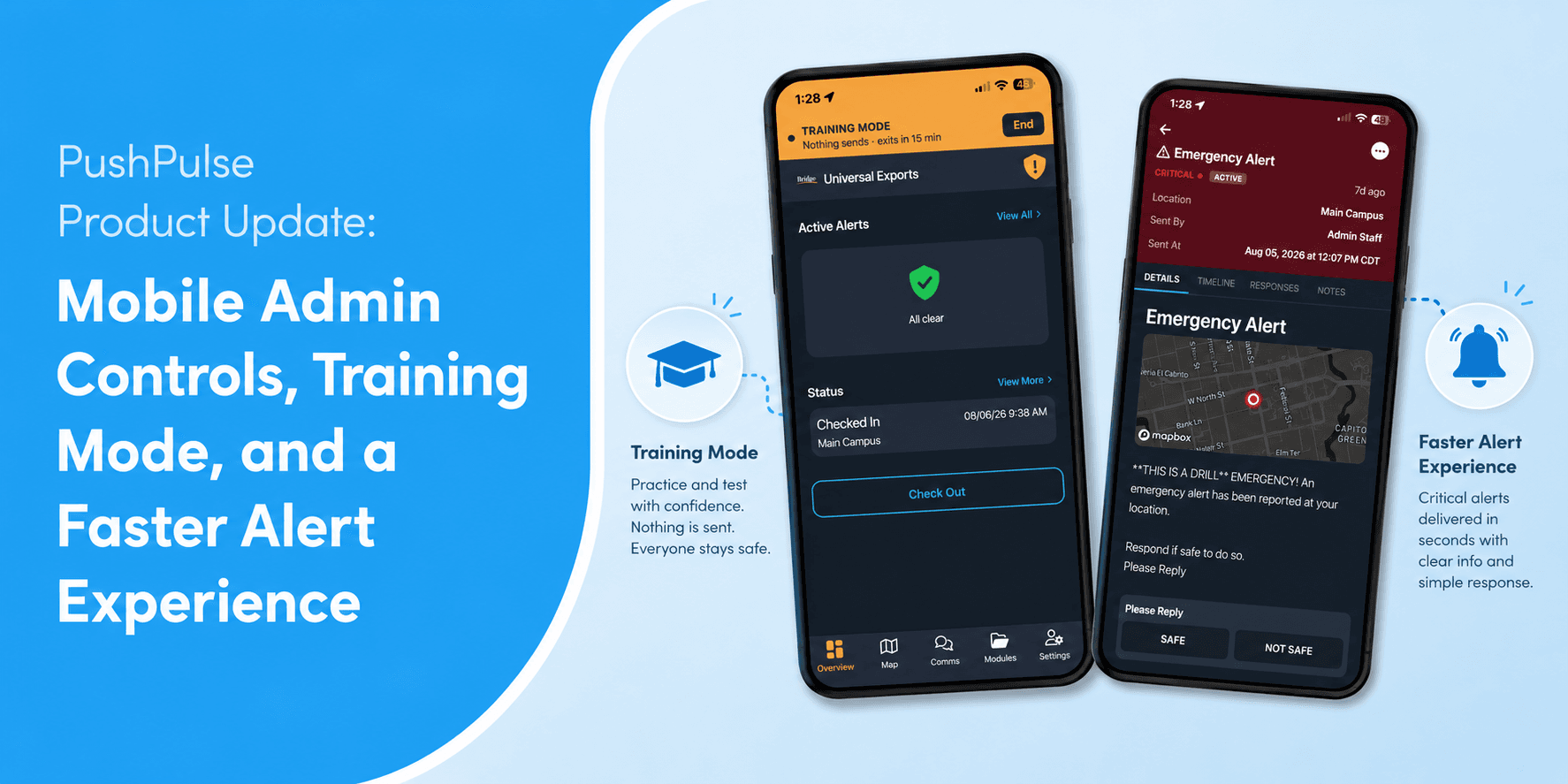
The mobile app is faster to move through and easier to read under pressure:
Simpler navigation. Fewer places to look for the thing you need.
One tap to your alert templates. Tap the alert button and your templates are right there.
A clearer incident page. Status and responses are visible at a glance, so you can see who has responded without scrolling.

What is new in Comms?
Comms has a refreshed layout that makes it easier to see who is talking. You can also mute and unmute from your lock screen, without unlocking your phone and returning to the app. When your hands are full, that small change matters.

How do I know who I am talking to?
User Titles let you label people by the role they play in a response, such as Security, Medical, or Manager. Titles appear next to a person's name in chat, Comms, check-in, and incidents.
In a large team, or one with volunteers who rotate week to week, names alone do not tell you who can help. A title does.
To set them up, go to Directory > Users > Settings > Titles.

What's next?
PushPulse now integrates with Avigilon access control, so your door and access events can connect directly to your alerting and response.
More is on the way: AI camera detection with IntelliSee, so detected threats can trigger alerts automatically, and critical incident mapping data, which puts your facility's response maps in front of your team during an incident. More access control integrations are also in the works.
Get started
These updates are available now. Update to the latest version of the mobile app, then turn on GPS Tracking and User Titles from the settings paths above.
Is there a system you would like PushPulse to connect with? Let us know.